
Running out of storage on an Android phone can be frustrating, especially when most of the files on the device are important. Photos, videos, documents, downloaded media, applications, and messaging attachments can gradually consume available space. Eventually, you may see storage warnings when trying to install an application, download a video, or capture a new photo.
The good news is that freeing up storage does not always mean deleting your personal files. Android provides several ways to identify what is consuming space and remove unnecessary data while keeping important photos, documents, videos, and other files safe. The key is to review your storage carefully instead of deleting everything you do not immediately recognize.
Check What Is Taking Up Space First
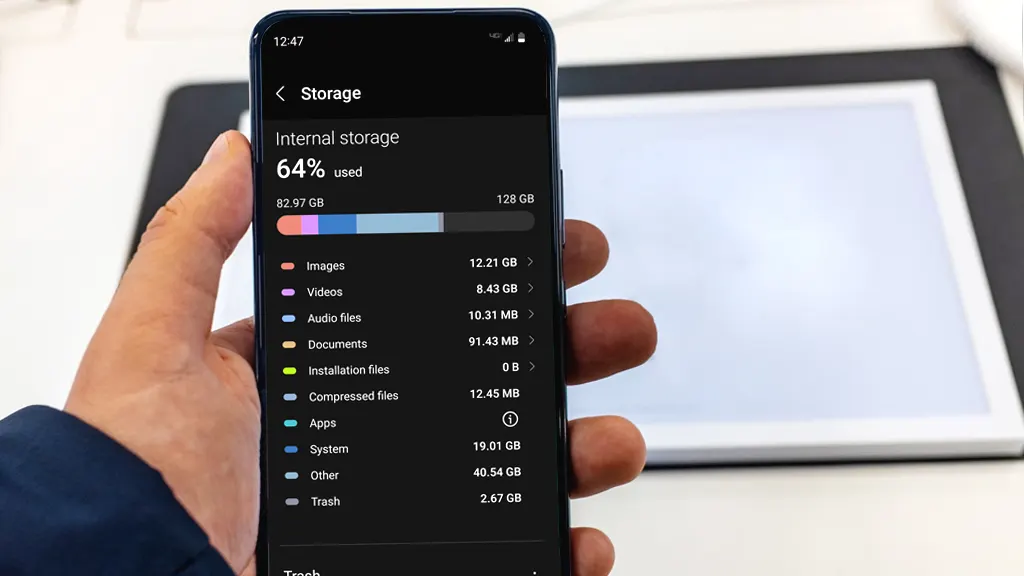
Before removing anything, find out which categories are using the most storage. Android phones normally provide a storage section inside Settings where you can review categories such as applications, images, videos, audio, documents, and other data. Google recommends checking storage usage before deciding what to remove.
The exact menu can vary between manufacturers because Samsung, Xiaomi, Vivo, Oppo, Motorola, Google Pixel, and other brands may organize their settings differently. Look for an option such as Storage, Device Care, Storage Space, or a similar name.
Checking this information first prevents unnecessary deletions. If videos are consuming most of your space, removing small documents will not make much difference. Similarly, if applications are responsible for most of the storage usage, focusing only on photos may not solve the problem.
Remove Temporary App Cache
Applications frequently store temporary files called cache data. These files can help apps load content faster, but they can sometimes become relatively large over time. Android allows users to clear an application’s cache through the app settings on supported devices. Clearing cache removes temporary data rather than the complete application data.
To check an application’s storage, open Settings, go to Apps, select the application, and look for Storage or Storage and cache. If the option is available, choose Clear cache.
Be careful not to confuse Clear cache with Clear storage or Clear data. Clearing an app’s storage can permanently remove its stored application data, depending on the app. Google specifically distinguishes clearing cache from clearing storage because they have different effects.
For that reason, clearing cache is generally a safer first step when you simply want to remove temporary files.
Find Large Videos and Old Downloads
Large videos are often responsible for surprisingly high storage usage. A few long recordings, downloaded movies, screen recordings, or forwarded videos can occupy several gigabytes without being noticed.
Open your Files app and review your videos and downloads. Android’s file management tools allow you to browse files and organize them, while Files by Google can help identify categories and storage-heavy content.
Instead of deleting everything, look for files that you already have somewhere else. For example, an old video may have been transferred to your computer or backed up to a cloud service. Confirm that an important file is safely stored before removing the local copy.
Downloads are another area worth checking. PDF documents, installation files, images, videos, and other items downloaded from websites can remain on the phone long after you finish using them. Files by Google provides a specific option for reviewing downloaded files and moving selected items to the Trash.
Remove Duplicate Photos and Files
Duplicate files are another easy source of unnecessary storage usage. You may have multiple copies of the same photograph because it was downloaded several times, edited in different applications, or received through different conversations.
Files by Google includes a duplicate-files cleanup feature. It identifies duplicate files and marks one copy as the original, helping you decide which versions can be removed. Google recommends keeping the file marked as Original.
Do not automatically delete every file suggested by a cleanup tool. Look at the file names, sizes, and previews before confirming. Some files may look similar but actually contain different versions or edits.
A careful review can recover useful space without risking important memories or documents.
Review Screenshots You No Longer Need
Screenshots can quietly build up over time. People often capture payment confirmations, product information, conversations, instructions, social media posts, maps, or temporary information and then forget about them.
Open your screenshots folder and look through older images. If a screenshot is no longer useful and the information is available elsewhere, you can remove it.
Files by Google includes recommendations that can help users review screenshots and other files that may no longer be necessary.
This method is particularly useful because screenshots are usually easier to evaluate than personal photographs. You can often identify unnecessary screenshots quickly while keeping your important camera photos untouched.
Use Cloud Backup Before Removing Photos
Photos and videos can consume more storage than almost anything else on a phone. If you have a reliable backup service and your important photos have already been backed up, you may be able to remove local copies while keeping access to the backed-up versions.
Google’s Android guidance notes that when photos are backed up with Google Photos, backed-up copies can be removed from the device to free local storage.
However, never assume that a photo is backed up simply because Google Photos is installed. Open Google Photos and verify that the important items have actually completed their backup.
This step deserves extra attention because deleting a photo from the wrong location or before backup is complete can result in losing something you wanted to keep. When in doubt, verify the backup first and consider keeping particularly important files in more than one location.
Move Large Files to a Computer
You do not have to delete important files simply because your phone does not have enough storage. Another option is to move them to a computer, external storage device, or another secure location.
Android supports transferring files to a computer using a USB cable. After confirming that the files have been copied successfully, you can remove the original copies from your phone.
This can be especially helpful for people who record many videos or keep large collections of photographs. Instead of repeatedly deleting memories, you can maintain an organized archive elsewhere.
Create folders on your computer before transferring large amounts of content. For example, you might organize files by year, month, event, or project. This makes it easier to find them later.
Uninstall Apps You No Longer Use
Unused applications can occupy storage through the application itself and through additional downloaded data. Review the apps installed on your phone and identify applications you have not opened for a long time.
Android provides tools for managing unused applications, and Files by Google can also identify apps that have not been used for an extended period.
You do not need to remove applications that you regularly use. Focus on games you stopped playing, shopping apps you installed temporarily, editing tools you no longer need, and other applications that have remained unused.
Google also provides automatic app archiving on supported Android devices. Archived apps can have their software removed while retaining the app icon and personal data, allowing the application to be restored later when needed.
This can be a useful alternative when you want to reduce storage usage without completely abandoning an application.
Clean Up Downloaded Media Inside Apps
Some storage does not appear as ordinary files because applications keep downloaded content inside their own storage systems. Music applications, video services, podcast applications, and other media apps can save offline content for later use.
Review the downloads inside the applications you regularly use. Remove movies you have already watched, music you no longer need offline, old podcast episodes, or other downloaded content that can easily be downloaded again.
Google’s current Android guidance also recommends removing downloaded movies, music, and other media from the application where the content was downloaded.
This approach is safer than randomly deleting folders because you can manage the content through the application that created it.
Clean Unnecessary Junk Files Carefully
Files by Google includes a cleanup area that can identify junk files and other categories that may be taking up space. Google explains that some applications store temporary files and that clearing these junk files can free storage without changing app settings.
However, you should still read the cleanup suggestions before confirming them. Google notes that files removed through the Junk files cleanup can be permanently deleted rather than moved to the Trash.
This is an important distinction. A cleanup tool is helpful, but you should understand what it is recommending before pressing the final confirmation button.
Use Trash and Recycle Options Wisely
Some Android file managers provide a Trash or Bin where deleted files remain temporarily before permanent removal. Files by Google, for example, can keep certain deleted files in Trash for 30 days, allowing them to be restored during that period.
This gives you an additional opportunity to recover something that was deleted accidentally. However, not every type of cleanup uses the Trash system. Certain junk files may be permanently deleted immediately.
If you are trying to recover storage, remember that moving files to Trash may not immediately provide the same permanent space savings as deleting them permanently. Check your file manager’s Trash settings and review the contents before emptying it.
Avoid Clearing App Storage Without Checking
One of the most common mistakes when trying to free space is pressing Clear storage or Clear data without understanding what it does.
Clearing an application’s cache and clearing its storage are different actions. Cache contains temporary information, while clearing storage can remove application data. Google warns that clearing storage permanently deletes all app data for that application in supported Android settings.
Before clearing storage, check whether the app contains offline downloads, saved projects, account information, drafts, or other data you still need.
If an app itself provides a way to delete old downloads or temporary content, use that option first.
Keep Some Free Space Available
After cleaning your phone, try not to fill the storage completely again. A device with almost no free space can become difficult to manage because applications need room for updates, temporary files, downloads, and new media.
You do not need to maintain a specific percentage for every Android phone because storage management varies between devices. Instead, make it a habit to check storage periodically.
Files by Google can also provide notifications when storage is almost full and can alert you about categories such as duplicate files, junk files, large files, and unused applications.
These reminders can make storage management a regular maintenance task instead of something you only think about after receiving a low-storage warning.
A Safer Storage Cleanup Routine
Freeing storage does not have to mean deleting valuable personal content. Start by checking which categories are consuming the most space. Then review temporary cache, old downloads, duplicate files, screenshots, unused applications, and offline media.
For important photos and videos, verify backups before removing local copies. For documents and personal files, consider moving them to a computer or another secure storage location rather than deleting them permanently.
Most importantly, avoid rushing through cleanup recommendations. Preview files whenever possible and understand the difference between temporary cache, application data, backed-up content, and personal files.
A careful storage routine can recover a significant amount of space while keeping the information that actually matters. Instead of treating every file as something that must be deleted, think of storage management as an organization task. Remove what is unnecessary, move what you want to keep elsewhere, and leave your important files safely in place.