Mobile internet has become an essential part of everyday smartphone use. People rely on mobile data for messaging, social media, navigation, online banking, video calls, browsing, and many other activities. However, a limited data package can disappear surprisingly quickly when applications continue using the internet in the background or when videos and media are loaded at high quality.
The good news is that you do not have to turn off mobile data completely to reduce your usage. Android provides several built-in settings that can help control how applications consume mobile data while keeping your internet connection active. By combining Data Saver, background-data controls, app settings, and smarter streaming habits, you can make a mobile data package last considerably longer.
Turn On Android Data Saver
One of the easiest ways to reduce mobile data consumption is to enable Android’s built-in Data Saver feature. Data Saver limits how most apps and services use mobile data in the background while allowing the application you are actively using to continue accessing the internet. This means you can still browse websites, send messages, and use online applications without completely disconnecting your phone.
On many Android phones, you can find this option under Settings, Network and Internet, and Data Saver. The exact menu names can differ between manufacturers and Android versions. Some phones also allow Data Saver to be added to the Quick Settings panel, making it easier to enable whenever you are using a limited data package.
Data Saver is particularly useful when you want your phone to remain connected but do not want every installed application continuously transferring information in the background.
Check Which Apps Use the Most Data
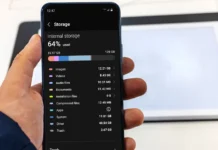
Before changing several settings, find out which applications are actually consuming your mobile data. Android provides mobile-data usage information that can show how much data individual apps have used during a selected period.
On supported Android devices, you can usually find this information through Settings and the network or internet section. Some devices provide an App Data Usage screen where applications can be viewed according to their data consumption.
This step is important because the biggest data consumer may not be the application you expect. A video platform, cloud-storage application, social media app, or automatic backup service may use substantially more data than messaging applications.
Once you identify the apps using the most data, you can focus your adjustments on those applications instead of restricting everything on your phone.
Restrict Background Data for Unnecessary Apps
Many applications use mobile data even when you are not actively looking at them. They may refresh content, synchronize information, download updates, or retrieve notifications. Data Saver helps reduce this background activity, but Android also provides more specific controls on supported devices.
If an application does not need constant background access, restricting its mobile-data usage can reduce unnecessary consumption. The exact path varies between Android manufacturers, but the relevant controls are generally found in the app’s information or mobile-data settings.
You should be selective when doing this. Some applications need background connectivity to provide notifications or other important functions. Android’s own guidance notes that some apps and services may not work as expected when their background mobile-data access is restricted.
Allow Important Apps to Bypass Data Saver
Data Saver does not have to treat every application equally. Android allows selected apps to receive unrestricted data access when Data Saver is active. This can be useful for applications where background connectivity is important.
For example, you might allow a messaging application or another important service to continue using mobile data while keeping most other apps restricted. On supported Android versions, this option can be found under Data Saver and Unrestricted Data.
This approach gives you more control than simply switching Data Saver on or off. Your phone remains connected, but only selected applications receive unrestricted background access.
Reduce Video Streaming Quality
Video is one of the easiest ways to consume a large amount of mobile data. Streaming services can automatically select high-quality video when the connection is fast, and higher resolution generally requires more data.
When using mobile data, open the settings inside your preferred video application and look for options related to video quality, data usage, or playback quality. Choosing a lower quality when you are away from Wi-Fi can significantly reduce consumption.
You do not necessarily need to use the lowest possible quality. A moderate setting can provide a reasonable viewing experience while using less data than high-definition or ultra-high-definition streaming.
This is particularly useful for short-video platforms because continuously scrolling through videos can result in a large amount of media being downloaded without you realizing how quickly the data is being consumed.
Use Data-Saving Modes Inside Apps
Android’s system-wide Data Saver is useful, but many individual applications also provide their own data-saving options. These settings are worth checking because they can reduce the amount of media downloaded or lower the quality of content displayed while using mobile networks.
Social media applications may provide options related to video autoplay, media quality, or automatic downloads. Streaming applications can provide mobile-data preferences. Video-calling apps may also include dedicated data-saving modes. For example, Google Meet provides a data-saving setting that can reduce data use during calls.
Using these application-level settings alongside Android Data Saver can provide more control without requiring you to turn mobile internet off.
Stop Automatic App Updates Over Mobile Data
Application updates can sometimes consume a significant amount of data, particularly when several large updates are downloaded together. If your mobile package is limited, it can be useful to configure your app store so that large updates are performed over Wi-Fi instead of mobile data.
Open the Google Play Store and review its network preferences for app downloads and updates. Choosing a Wi-Fi-only option where appropriate can prevent unexpected mobile-data usage.
This does not mean you need to stop updating your applications. Instead, the goal is to schedule large downloads for a connection where they do not consume your limited mobile allowance.
Control Automatic Photo and Video Backups
Cloud backups can quietly use mobile data, especially when your phone contains many photos and videos. A large collection of high-resolution media can require substantial data when it is uploaded to cloud storage.
Check the backup settings in the photo or cloud-storage applications installed on your phone. Look for options that control whether backups can use mobile data. If you have access to Wi-Fi regularly, configuring large media backups to happen over Wi-Fi can help preserve your mobile package.
This is particularly useful after taking many photos or recording long videos. Instead of allowing everything to upload immediately through mobile data, you can wait until the phone connects to a suitable Wi-Fi network.
Turn Off Automatic Video Playback
Automatic video playback is another common source of unnecessary data consumption. A video can begin downloading while you are simply scrolling through a social media feed, even if you did not intend to watch it.
If an application provides an autoplay setting, consider disabling autoplay or changing it to work only on Wi-Fi. This allows you to decide which videos are worth loading instead of automatically downloading every piece of video content that appears on your screen.
This small adjustment can be particularly helpful for people who spend a lot of time on social media. Instead of several videos loading automatically, you can choose what you actually want to watch.
Download Music and Videos Over Wi-Fi
If you regularly listen to the same music or watch the same videos, downloading them while connected to Wi-Fi can reduce repeated mobile-data usage.
Many streaming services provide offline features that allow eligible content to be stored for later playback. You can use Wi-Fi to prepare playlists, podcasts, videos, or other supported content before leaving home.
This approach is especially helpful for long journeys. Rather than streaming continuously throughout a trip, you can prepare content beforehand and use your mobile connection only when necessary.
Use Wi-Fi for Large Downloads
Large files should generally be downloaded through Wi-Fi whenever possible. This includes operating-system updates, application packages, large documents, video files, and other downloads.
Android also allows Wi-Fi networks with data limits to be treated as metered networks on supported versions. This gives the system and apps information that the connection has a data limit and can help control certain background downloads and other usage.
If you use a personal hotspot with a limited mobile package, remember that other connected devices can also consume your mobile data. A laptop downloading updates or cloud files can use considerably more data than a phone performing normal browsing.
Set a Data Warning
Android can provide a warning when your mobile-data usage reaches a level you specify. This is useful when you have a monthly or daily allowance and want to know when your consumption is becoming unusually high.
On supported Android devices, the Data Warning and Limit settings allow you to set a warning amount. When your usage reaches the selected level, the phone can notify you.
For example, if your monthly package provides a fixed amount of data, you can set a warning below the total allowance. This gives you time to reduce usage before the package is completely consumed.
A warning does not reduce data consumption by itself, but it helps you notice the problem early.
Be Careful With Mobile Hotspot
Mobile hotspot can be extremely useful, but it can also consume mobile data quickly. A connected laptop, tablet, or another phone may perform background downloads without making the activity obvious.
If you need to share your connection, check which devices are connected and disconnect them when they are no longer needed. You should also avoid leaving a hotspot active for long periods when no other device is using it.
Large downloads and video streaming on a connected computer can consume much more data than ordinary phone browsing. Monitoring hotspot usage is therefore an important part of managing a limited mobile package.
Reduce Data Use During Video Calls
Video calls can use considerable amounts of mobile data because both video and audio are continuously transferred. When your data allowance is limited, consider using a data-saving option provided by the calling application.
Google Meet, for example, provides a setting designed to limit data usage during calls. Its help documentation explains that data-saving mode can reduce data use and call quality.
When video quality is not essential, lowering the quality or using audio-only communication can help reduce consumption. This can be particularly useful during long calls.
Avoid Unnecessary Cloud Synchronization
Cloud services can keep files synchronized across devices, which is convenient but may consume mobile data. If you have large folders containing photos, videos, or documents, automatic synchronization can become a significant source of usage.
Review the synchronization settings for cloud-storage applications and decide which services really need mobile-data access. Important information can remain synchronized while larger files are reserved for Wi-Fi.
This creates a balance between convenience and data conservation. You do not have to disable cloud services completely to reduce mobile-data usage.
Keep Mobile Data Active Without Wasting It
Saving mobile data does not mean you have to stop using the internet. The goal is to make your phone more selective about when and how it consumes data.
Start by enabling Data Saver, then check your app usage to identify the biggest consumers. Restrict unnecessary background activity, reduce video quality, disable automatic playback where possible, and reserve large downloads and backups for Wi-Fi. Android provides several controls that support this approach.
You can also use data warnings to keep track of your consumption. Instead of discovering at the end of the month that most of your package has disappeared, you can receive an early notification and adjust your habits.
Small Changes Can Make a Big Difference
The most effective way to save mobile data is usually not one dramatic setting. It is a combination of several small adjustments. A lower video quality setting, fewer background downloads, Wi-Fi-only updates, controlled cloud backups, and careful hotspot use can all reduce unnecessary consumption.
You can still keep mobile data turned on throughout the day. Messages can arrive, websites can load, navigation can work, and important applications can remain connected. The difference is that your phone is no longer allowing every application to use the connection freely in the background.
Android’s Data Saver and data-usage controls make it possible to manage this balance without completely disconnecting from the internet.
Make Data Saving a Regular Habit
Once you configure your phone, it is worth checking your mobile-data usage occasionally. Your consumption can change when you install a new application, start watching more videos, use a hotspot, or increase cloud-storage activity.
A quick review of the data-usage screen can show whether your current settings are working as expected. If one application suddenly appears at the top of the usage list, you can investigate it and adjust its settings.
The best setup will depend on how you use your Android phone. Someone who mainly sends messages may need very few restrictions, while someone who watches videos and uses mobile data throughout the day may benefit from several data-saving measures.
Keeping mobile internet active does not have to mean using your entire data package quickly. With Android’s built-in controls and a few sensible changes to app settings, you can stay connected while making your available mobile data last longer.